
Academy
Module: Store-team launch checklist
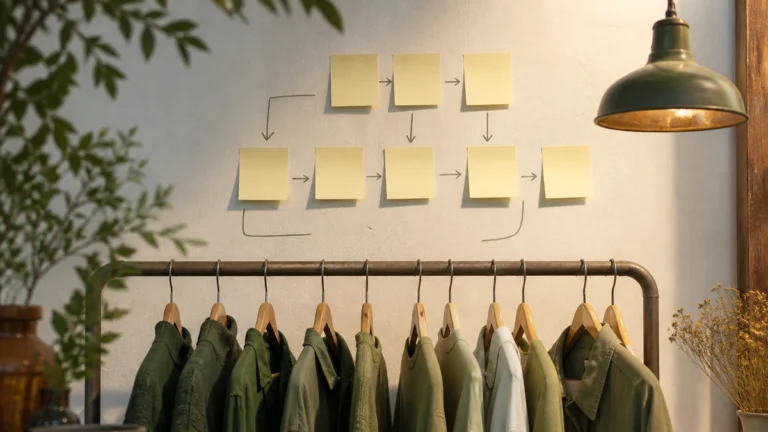
A six-step launch sequence that matches the live Help Center, not an invented project plan.

This module is a six-step launch sequence that matches the live Help Center. It does not add a fake Gantt chart or a guaranteed go-live date. Completion is operational: a merchandiser can finish a real shopper mission on a staging theme using live SKUs.
Fashion launches fail when theme, catalog, knowledge, and billing are treated as one blurry “install.” Keep the jobs distinct even if one person holds several hats.
Sequence
- Getting Started — read the path before you skip steps.
- Connect a Shopify Store — only after catalog trust on representative SKUs.
- Install the Storefront Widget — on the theme you publish, including fashion PDP and collection templates.
- Merchant Knowledge — facts that match live policy pages, plus prohibitions.
- Virtual Try-On Setup if you will offer eligible try-on — visualization language only; privacy page known to support.
- Product Updates so the team knows where V1 capability notes live (not a fake changelog).
Parallel jobs that still have owners
- Billing and access: Plans, Usage and Billing and Pricing — do not copy prices into this checklist.
- Portal controls: Merchant Portal Guide for rules and knowledge publishing.
- Recommendation constraints: Catalog-Only Recommendations and Complete the Look.
- Incident paths: Troubleshooting and Contact.
Pre-flight on five SKUs
Before you call the sequence done, pick five SKUs that represent how you sell. Confirm size, color, stock, and images in Shopify and on the PDP. Ask the assistant questions that require those fields. If they disagree, you are not in a launch celebration. You are in catalog or sync work. See Shopify Catalog Sync.
Template verification
Open collection, default PDP, any alternate product template, and any paid landing template. If the launcher is missing, embed is incomplete regardless of app admin toggles. Desktop and mobile both count. Details sit in Shopify Theme Embed.
Exit criteria
A merchandiser can complete a real shopper mission on a staging theme using live SKUs. Finance knows where billing documentation is. Someone is named to update knowledge. Someone is named to re-verify embed after the next theme publish. Eligible try-on, if enabled, is explained without a fit guarantee, and Virtual Try-On and Image Privacy is in the support macro.
Failure modes
- Widget live on a development theme only.
- Knowledge copied from a competitor’s FAQ.
- Try-on enabled with campaign language that implies exact fit.
- Board update that includes a conversion promise this module does not contain.
Roles at the go-live meeting
Merchandising brings the five-SKU scores. Ecommerce brings Shopify admin and the published theme name. Whoever owns the theme confirms embed on collection, PDP, alternate templates, and paid landings. Whoever owns knowledge confirms two policy questions match live pages. Finance confirms they have read billing help and will not quote remembered prices. If a role is empty, the checklist is not done.
Eligible try-on is optional. If you skip it, say so explicitly so sales does not invent a preview. If you include it, privacy URL and visualization language are mandatory. Virtual Try-On Setup.
Week-one rituals
Verify three in-demand styles against Shopify inventory. Re-check embed after any theme publish. Update knowledge when a banner changes. Do not treat conversation volume as success if recommendations are out of stock. Observational reporting only: Usage and Outcome Analytics.
After launch
Run a weekly inventory truth check and a knowledge comparison when policies change. Use Resources Overview as the hub, Guides for operator depth, and Academy to onboard the next teammate. If you still need a product conversation, Book a Demo is the public CTA—not a guaranteed timeline.
Related capability notes: AI Shopping Assistant and How it works. This checklist is complete when the store can defend what the assistant says, not when a box is ticked in a spreadsheet.
Stop points
Stop before connect if five SKUs cannot defend size and stock. Stop before embed if you are on the wrong theme. Stop before try-on if eligibility and privacy macros are not written. Stop before celebrating if finance has not read Plans, Usage and Billing and Pricing—and still do not copy prices into notes.
Paid landings are a stop point many fashion teams miss. If ads use a page-builder template, that template needs the widget. Shopify Theme Embed.
Evidence to keep
- Five-SKU score sheet (pass, gap, conflict).
- Template list verified on desktop and mobile.
- Two knowledge questions compared to live pages.
- Named owners for catalog, knowledge, embed, billing.
Hub: Resources. Capability notes: Product Updates. Demo path if needed: Book a Demo.
Honest labels for unfinished work
If try-on is skipped, write “not enabled” so sales does not invent it. If pairing is skipped because accessories are props, write that too. If paid landings are unverified, treat that as a known risk before spend. The checklist is a record of truth, not a row of optimistic ticks. Hub: Resources.
After go-live, the same sequence is a regression test: connect still healthy, widget still on templates, knowledge still matching pages, rules still catalog-only. Catalog-Only Recommendations.
A merchandiser completing one real shopper mission on staging with live SKUs is the exit, not a spreadsheet of ticks. Finance must know where billing documentation lives. Someone must own knowledge updates. Someone must re-check embed after theme publish. Resources Overview.
Skip no Help Center step because it feels uncreative; catalog, embed, knowledge, and billing are separate jobs.