
Guides
Install the storefront widget on fashion templates
The assistant has to appear where shoppers already decide: collections, PDPs, and the paths into cart.
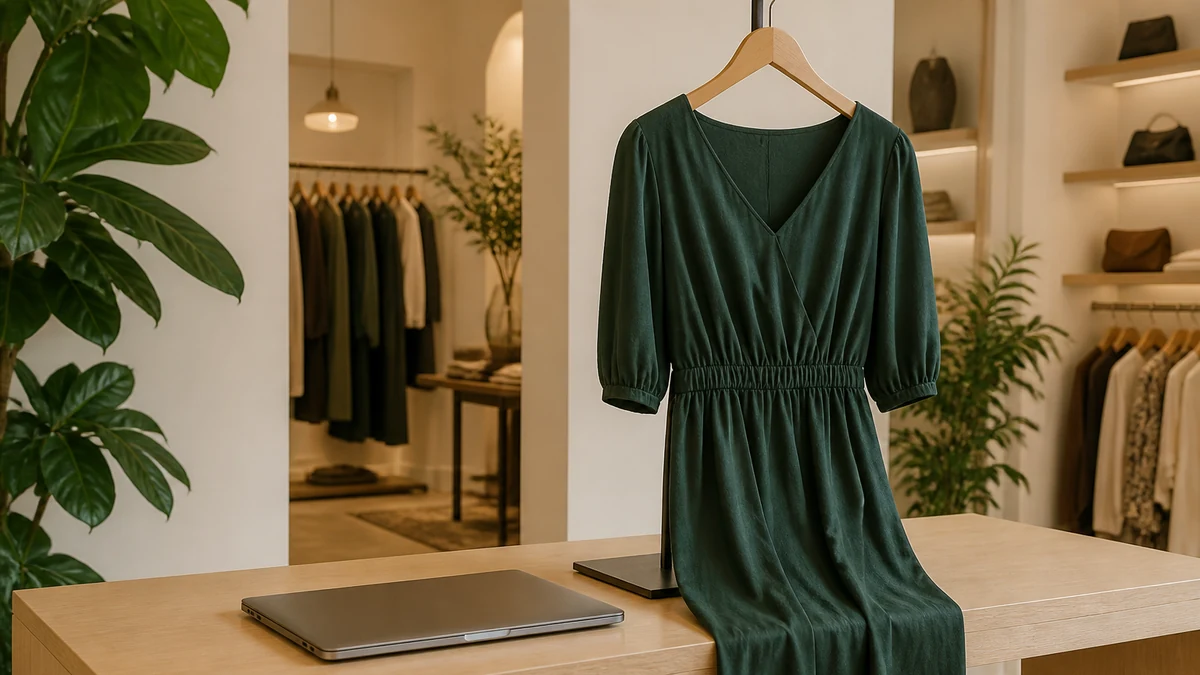
A shopping assistant that only appears on a campaign landing page will not help a shopper standing on a midi-dress product page. Placement is part of the product. Fashion templates already compete for attention: galleries, size charts, reviews, sticky add-to-cart, and legal links. The widget has to be reachable in the decision context without covering the information the shopper still needs.
This guide covers intent and verification. Exact theme selectors and supported embed steps live in Help Center. Do not paste unverified scripts from a forum or a freelancer’s memory of a different app.
Where shoppers actually decide
In apparel, decisions cluster on collection pages, product pages, and the path into cart. Some merchants also want the assistant on a lookbook or editorial page. Start with PDP and collection templates used by your live theme. If those templates differ between desktop and mobile, test both. A drawer that works on desktop and hides behind a sticky bar on a phone is not installed.
- Collection templates: help shoppers narrow without abandoning the grid.
- Product templates: answer questions next to the media and variant selector.
- Cart or checkout-adjacent templates: only if your theme and policies allow guidance there without covering legal copy.
- Lookbook or editorial templates: only when those pages are actually used in the journey you care about, and only after PDP coverage exists.
Do not begin with the homepage unless the homepage is where your shoppers already decide. Most fashion purchase questions happen beside a garment, not beside a brand manifesto.
Install from the documented path
Use Install the Storefront Widget and Shopify Theme Embed. Confirm you are on the theme you actually publish, not a development theme you never promote. After embed, hard-refresh a real collection and a real PDP with variants. Cache, apps, and theme editors can make a preview lie.
Connection and embed are separate jobs. If Shopify is not connected, an attractively placed widget still has nothing honest to say. Complete Connect a Shopify Store as documented, then place the widget. See Getting Started for the sequence.
Fashion-theme conflicts to expect
Sticky add-to-cart bars, announcement sliders, wishlist drawers, size-chart modals, and cookie consent all compete for the same edges of the viewport. The assistant should not trap the shopper or hide a size chart they opened in good faith. If your theme uses a custom product template for bundles, gifts, or preorder drops, those templates need their own check—not an assumption that “the product template” is one file.
Desktop and mobile are different installs in practice
A right-rail launcher that is obvious on a large monitor can sit under a thumb-zone bar on a phone. Test a real device or a narrow viewport with the same apps enabled that production uses. Disable browser extensions that hide overlays when you are verifying, then re-enable the ones shoppers actually have, such as consent tools.
Visual and accessibility checks
The widget should not trap keyboard focus, hide size charts, or sit on top of cookie consent. Check color contrast against your theme. Confirm that images in recommendations still use the catalog media, not a decorative placeholder. If you use a translation app, verify the assistant still resolves to the same SKUs rather than to a translated phantom product.
- Keyboard: can you open, move through, and close the assistant without a mouse?
- Focus: does opening the widget steal focus in a way you cannot recover from?
- Contrast: are launcher and text readable on cream and forest brand surfaces?
- Reduced motion: if the theme respects prefers-reduced-motion, the widget should not fight it with non-essential motion.
- Legal: checkout-adjacent placement must not cover required notices.
A practical verification walkthrough
- Publish or preview the theme you will actually ship.
- Open one collection template and one PDP that uses a different product template, if you have more than one.
- Start a question that uses a catalog attribute (size, color, product type).
- Confirm the answer points at an in-stock variant you can also see on the PDP.
- Open the size chart or a modal the theme already uses; confirm the assistant does not cover it permanently.
- Repeat on a phone-width viewport.
If the assistant only appears on the homepage, installation is not complete. If it appears on a development theme but not the live one, installation is not complete.
Failure modes
- App embed enabled on the unpublished theme only.
- Template JSON in a vintage theme that never received the embed.
- A page builder landing template used for ads that does not include the same embed as the catalog templates.
- A third-party script manager stripping or delaying the widget until after the shopper has already bounced.
When installation is complete
Installation is complete when a merchandiser can open a live PDP, start a question that uses a catalog attribute, and reach an in-stock variant without leaving the store. Then continue with recommendation rules and knowledge. Placement without catalog truth is decoration.
Who signs off
A developer can complete an embed toggle. A merchandiser has to confirm the launcher is usable beside a size chart. An operator has to confirm cookie consent still works. If those people do not sit together for thirty minutes on a real device, you will ship a desktop-only install. Write the sign-off as names, not as “engineering done.”
After sign-off, theme publishes can silently drop the embed. Re-verify after every publish. Troubleshooting exists when the launcher never appears; do not invent a snippet.
Related: AI Shopping Assistant, How it works, and Troubleshooting if the launcher never appears.